
Hello. Today, I will explain the content I've briefly summarized after reviewing the official documentation for Reanimated 2.
ReAnimated?
In a single sentence, it is a React Native library that creates animations and interactions executed on the UI thread.
Background
Doesn't React Native itself provide animation? Of course, it does.
React Native officially provides the Animated API.
However, the Animated API thread communicates asynchronously with the UI thread, and when the JS thread becomes overloaded, frame drops can occur.
Therefore, Reanimated emerged to handle all heavy animation and interaction tasks directly on the UI thread.
Reanimated V2 Concepts
worklets
They create an auxiliary JS context on the UI thread, allowing javascript functions to be executed.
(In other words, they undergo a separate compilation process.)
In addition to specified arguments, they capture the defined context.
- How to create
const width = 135.5;

function otherWorklet() {
  'worklet';
  console.log('Captured width is', width);
}
You just need to insert the 'worklet' directive inside a function within your JS code.
However!
In practice, there's rarely a need to explicitly create worklets.
Even in official examples, there are very few instances where worklets are used directly.
You can create worklets and use them to detect changes in SharedValue by using the following hooks:
useAnimatiedStyle, useDerivedValue, useAnimatedGestureHandler
SharedValue
It is a value that can be shared between the JS and UI Threads. It supports all JS types.
It is optimized for reading on the UI thread. It executes synchronously only on the UI thread.
On the JS thread, it is processed asynchronously.
(This means that on the JS thread, even if the value changes, you will see the previous value until rendering occurs!)
const offset = useSharedValue(0);
Whenever the offset SharedValue changes, the dependent worklet will be executed.
Simple Example
const Box = React.memo(function Box() {
  const offset = useSharedValue(0);

  const [render, setRender] = useState(0);

  const animatedStyles = useAnimatedStyle(() => {
    return {
      transform: [{translateX: offset.value}],
    };
  });

  return (
    <>
      <Animated.View style={[styles.box, animatedStyles]} />
      <Button
        onPress={() => (offset.value = Math.random() * 255)}
        title="Move"
      />
    </>
  );
});
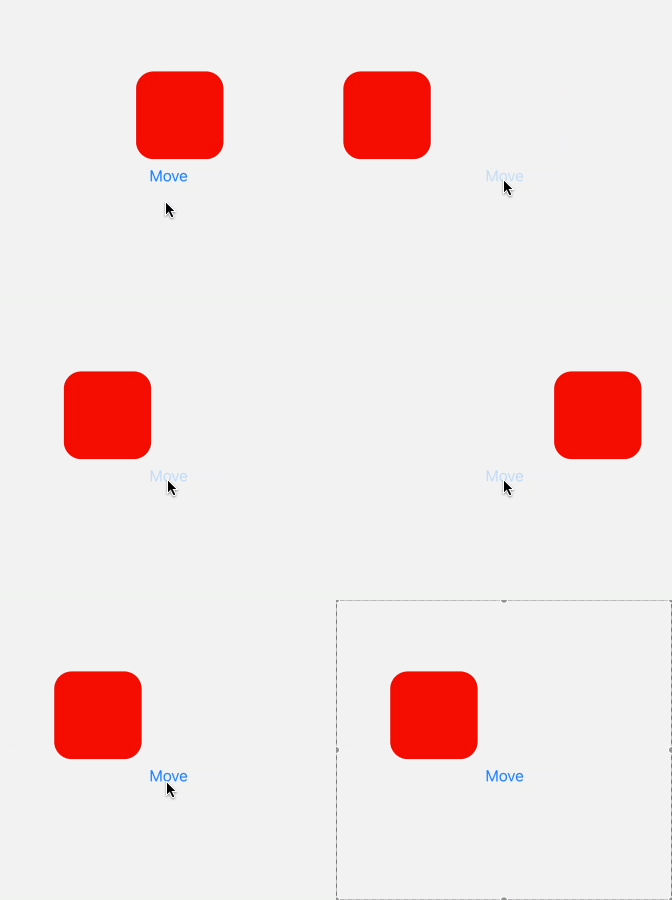
We created a shared value using useSharedValue,
and we are changing its value randomly each time the button is clicked.
A worklet was created using useAnimatedStyle, which was briefly mentioned above.
Therefore, whenever the SharedValue used within it changes, the method created by useAnimatedStyle is called, and the style is updated.
However, it feels somewhat choppy, not quite like a smooth animation ㅡㅅㅡ Let's customize it!!
Custom
https://docs.swmansion.com/react-native-reanimated/docs/fundamentals/animations
For more detailed explanations of each method when in use, it is recommended to refer to the official documentation. We will only provide a brief overview of their functionality here.
utility methods
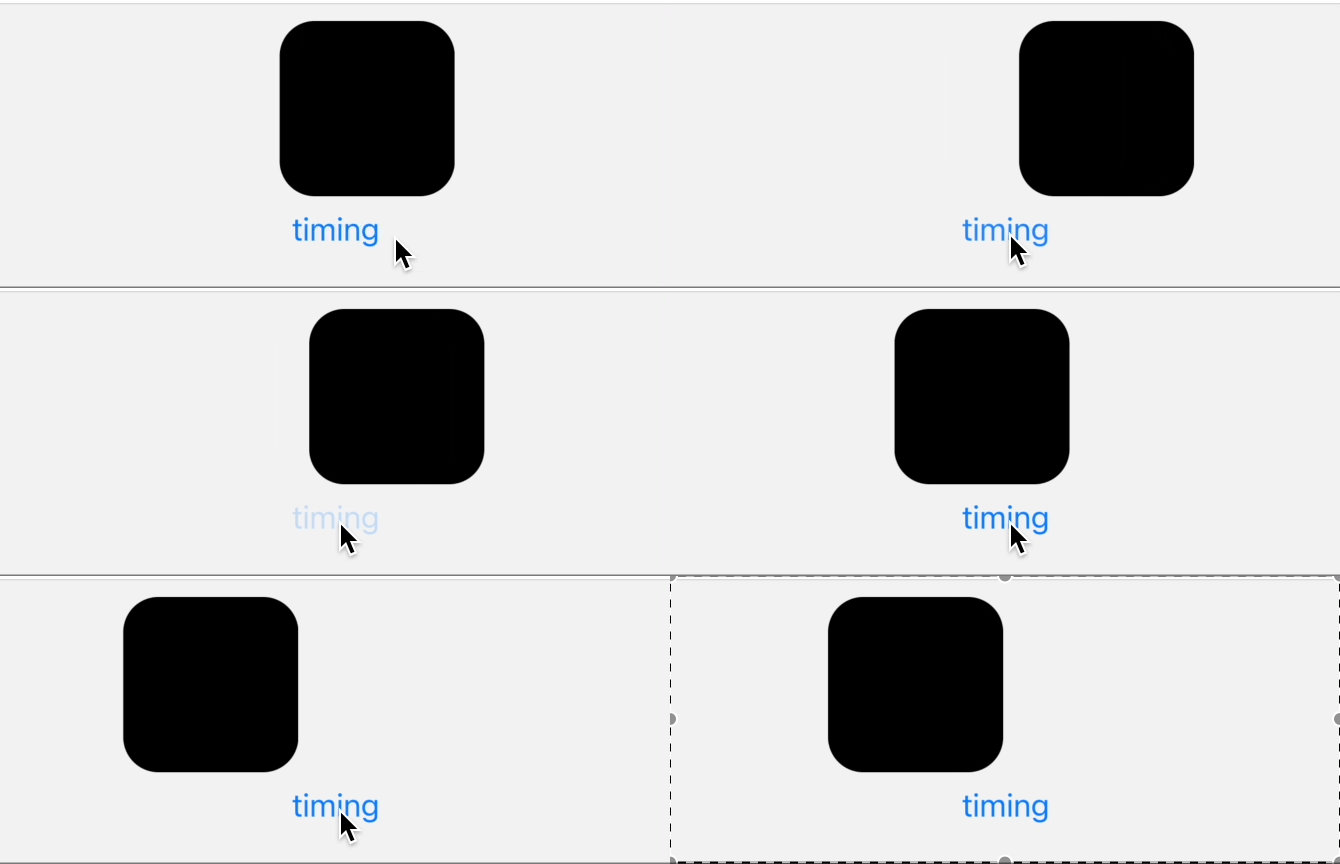
First, these methods help with the motion itself. They provide functionalities that ensure smooth, continuous transitions without choppiness.
- withTiming
<Button
	onPress={() =>
		(offset.value = withTiming(Math.random() * 255, {
			duration: 3000,
			easing: Easing.out(Easing.exp),
		}))}
	title="Move"
/>
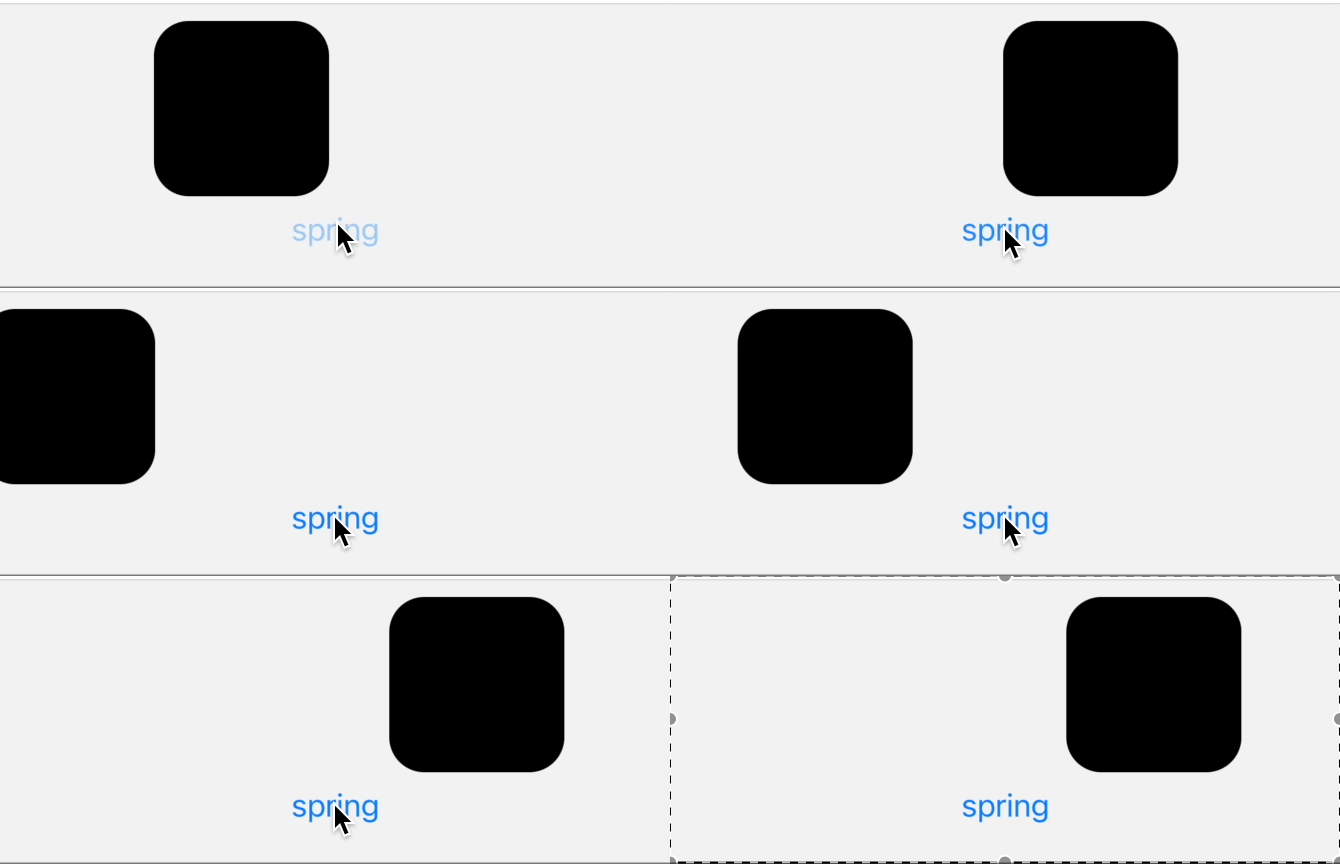
- withSpring
<Button
	onPress={() =>
  		(offset.value = withSpring(Math.random() * 255))}
	title="Move"
/>
animation modifiers
There are functions that allow animations to be repeated or combined into a single event.
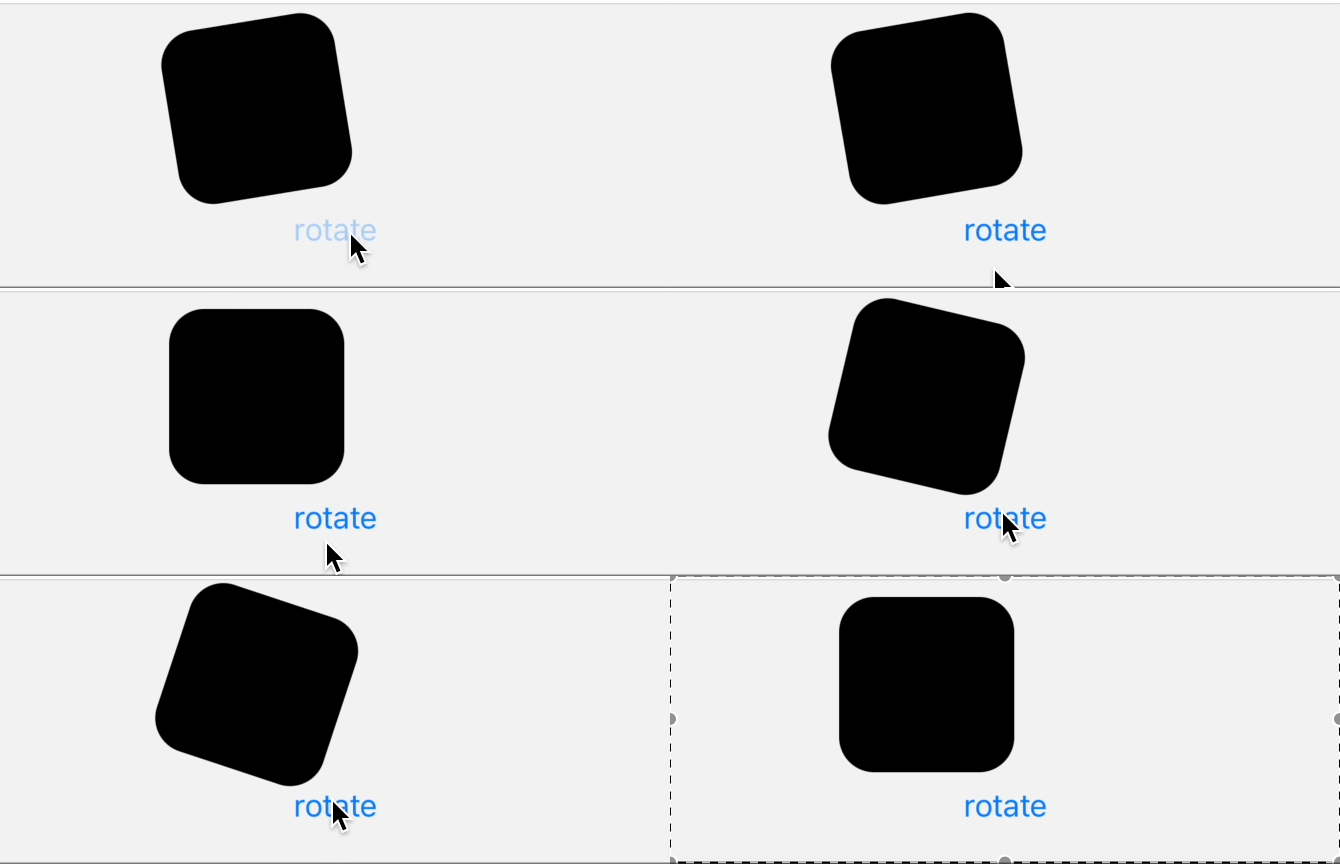
<Button
        onPress={() =>
          (rotation.value = withSequence(
            withTiming(-10, {duration: 50}),
            withRepeat(withTiming(20), 6, true),
            withTiming(-10, {duration: 50}),
            withTiming(0, {duration: 100}),
          ))
        }
        title="rotate"
      />
Event
Next is the Event related section!
ReAnimated handles events using the react-native-gesture-handler package.
Before diving into the event section, I'll briefly explain gesture handlers.
Various gesture handlers exist, such as TapGestureHandler and PanGestureHandler. The gesture I will demonstrate in this explanation is PanGestureHandler.
<PanGestureHandler onGestureEvent={eventHandler}><Animated.View style={[styles.ball, uas]} /></PanGestureHandler>
- useAnimatedGestureHandler
This hook allows you to define worklets for the following three types of gestures that occur:
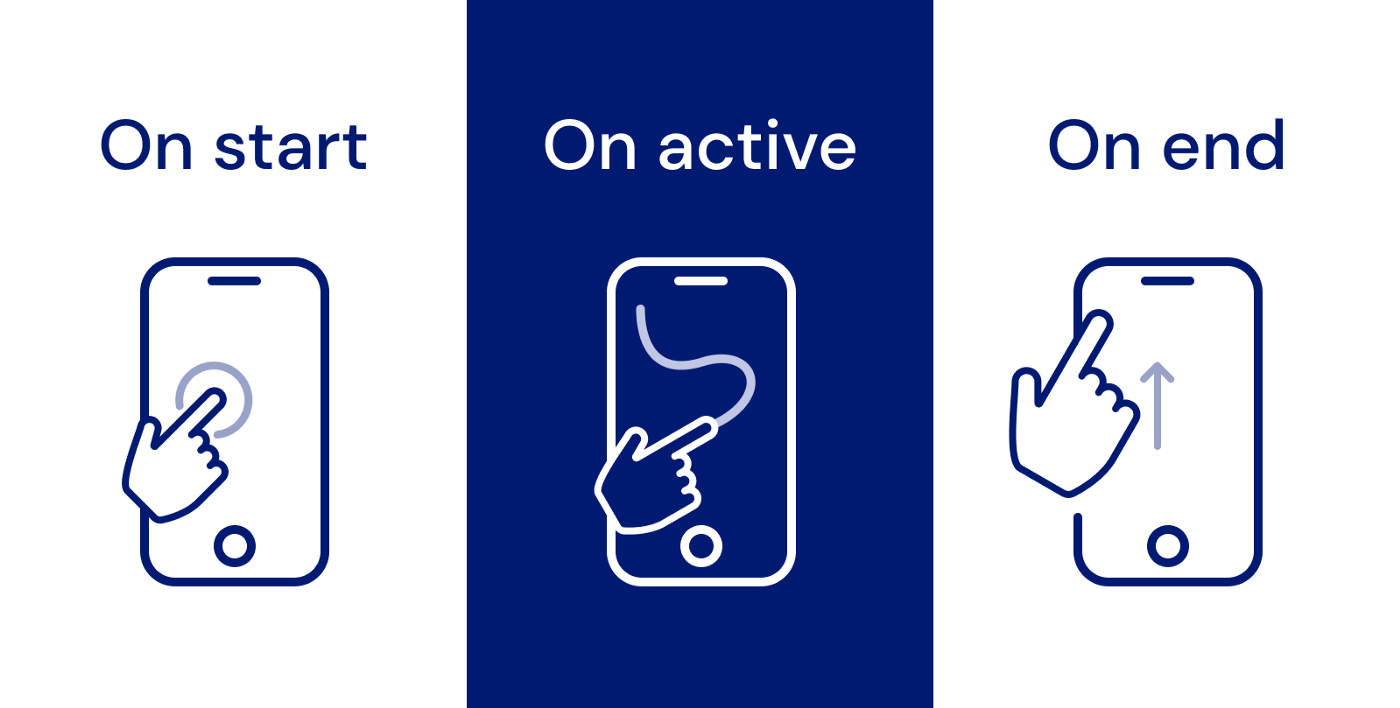
You can create them using useAnimatedGestureHandlers as shown below.
const eventHandler = useAnimatedGestureHandler<
    PanGestureHandlerGestureEvent,
    GestureCtxType
  >({
    onStart: (event, ctx) => {
      pressed.value = true;
      ctx.startX = x.value;
      ctx.startY = y.value;
    },
    onActive: (event, ctx) => {
      x.value = ctx.startX + event.translationX;
      y.value = ctx.startY + event.translationY;
    },
    onEnd: (event, ctx) => {
      pressed.value = false;
    },
  });
Each worklet provides event and context arguments.
event contains information about the triggered event.
context is a javascript Object that can be shared across worklets for a given gesture.
Event Example
Let's create an example that uses all the gesture events, worklets, and SharedValue concepts explained above!

Do you have an idea of how to build it?
Let's think together about what we need, one by one.
- Gesture event
- A
SharedValueto determine if it'spressed SharedValues for the x and y axes to store thetransformposition based on the event location
We can break it down into these three points!
- Creating
SharedValues and aworklet
const pressed = useSharedValue(false);

  const x = useSharedValue(0);
  const y = useSharedValue(0)

  const animationStyle = useAnimatedStyle(() => {
    return {
      backgroundColor: pressed.value ? 'tomato' : 'yellow',
      transform: [{translateX: x.value}, {translateY: y.value}],
    };
  });
As mentioned above, we created SharedValues to store the pressed state and the x, y coordinates. We also created a worklet method using the useAnimatedStyle() hook. Now, whenever the SharedValue changes, the view with this animation style will update accordingly.
- Creating the
gesture event handlerview
return (
    <PanGestureHandler onGestureEvent={eventHandler}><Animated.View style={[styles.ball, animationStyle]} /></PanGestureHandler>);
We created an Animated.View wrapped by PanGestureHandler.
- Creating the
event handlermethod
const eventHandler = useAnimatedGestureHandler<
    PanGestureHandlerGestureEvent,
    GestureCtxType
  >({
    onStart: (event, ctx) => {
      pressed.value = true;
      ctx.startX = x.value;
      ctx.startY = y.value;
    },
    onActive: (event, ctx) => {
      x.value = ctx.startX + event.translationX;
      y.value = ctx.startY + event.translationY;
    },
    onEnd: (event, ctx) => {
      pressed.value = false;
    },
  });
We created the method using useAnimatedGestureHandler, specifying the types for PanGestureHandlerGestureEvent and the context value to be shared.
In onStart, which is triggered on click, we set the pressed value to true and stored the initial x, y coordinates in the shared context.
In the onActive function, which is called whenever the view is moved while being pressed, we continuously update the current event coordinates in the context value.
In onEnd, which occurs when the hand is lifted, we set the pressed value to false.
By doing this, the pressed state changes the color, and as the x, y coordinates change with movement while pressed, the view's position also changes, completing the animation.
Below is the complete code.
type GestureCtxType = {
  startX: number;
  startY: number;
};

export const AnimationStep2 = React.memo(function AnimationStep2() {
  return <EventsExample />;
});

const EventsExample = () => {
  const pressed = useSharedValue(false);

  const x = useSharedValue(0);
  const y = useSharedValue(0);

  const animationStyle = useAnimatedStyle(() => {
    return {
      backgroundColor: pressed.value ? 'tomato' : 'yellow',
      transform: [{translateX: x.value}, {translateY: y.value}],
    };
  });

  const eventHandler = useAnimatedGestureHandler<
    PanGestureHandlerGestureEvent,
    GestureCtxType
  >({
    onStart: (event, ctx) => {
      pressed.value = true;
      ctx.startX = x.value;
      ctx.startY = y.value;
    },
    onActive: (event, ctx) => {
      x.value = ctx.startX + event.translationX;
      y.value = ctx.startY + event.translationY;
    },
    onEnd: (event, ctx) => {
      pressed.value = false;
    },
  });
  return (
    <PanGestureHandler onGestureEvent={eventHandler}><Animated.View style={[styles.ball, animationStyle]} /></PanGestureHandler>);
};

const styles = StyleSheet.create({
  ball: {
    width: 100,
    height: 100,
    borderRadius: 50,
    backgroundColor: 'black',
    marginTop: 10,
  },
});
Conclusion
Although this was a very simple summary following the tutorial process from the official documentation, I hope it was helpful to someone.
Thank you for reading.