
Images are one of the most crucial content types on the web. According to HTTP Archive, unoptimized images account for approximately 38% of the average webpage's weight, and web.dev states that 73% of mobile pages use images as their LCP (Largest Contentful Paint) element.
Unoptimized images slow down pages, which naturally pushes down search engine rankings. Google's research indicates that if page load time increases from 1 second to 3 seconds, the bounce rate increases by 32%. Therefore, image optimization is directly linked to both user experience and business performance.
In this post, we will organize the fundamental concepts of images and how browsers process them. In the next post, we will build upon this understanding to discuss actual optimization strategies.
Images
From a rendering perspective, images are categorized into two types: raster images and vector images.
Within raster images, there are various extensions classified by the degree of loss allowed.
1) Image Classification from a Rendering Perspective
Raster ImagesRaster images represent an image by drawing desired colors onto pixels. (e.g., JPEG, PNG, GIF) Since images are represented by pixels, creating high-quality images increases file size and reduces rendering speed.Vector ImagesVector images are a form of image that contains mathematical equations. Computers render images by calculating information such as line representation, size, and color using equations embedded within the image. Because they use such calculations, image file size does not change with resolution.- Comparison Table
| Characteristic | Raster Images | Vector Images |
|---|---|---|
| Composition | Pixel Grid (Bitmap) | Mathematical Equations (Lines, Points, Curves) |
| Resolution | Fixed, Pixelated on Zoom | Resolution Independent, Infinitely Scalable |
| Format | JPEG, PNG, GIF, WebP, AVIF | SVG |
| Use Case | Photos, Complex Images | Logos, Icons, UI Elements |
2) Raster Image Types
While vector images are simply the SVG format, raster images come in various types depending on their color depth, transparency, and compression method.
| Format | Compression | Transparency | Browser Support |
|---|---|---|---|
| JPEG | Lossy only | ❌ | All browsers |
| PNG | Lossless | ✅ | All browsers |
| GIF | Lossless* | ✅ | All browsers |
| WebP | Both | ✅ | Chrome 32+, Safari 16+, Firefox 65+, Edge 18+ |
| AVIF | Both | ✅ | Chrome 85+, Safari 16.4+, Firefox 93+, Edge 121+ |
*While GIF's LZW compression itself is lossless, color information loss occurs during the quantization process, which reduces the original to a 256-color palette. Therefore, it's more accurate to understand it as "loss during palette reduction + lossless LZW compression."
JPEG
JPEG is the oldest and most widely used image format, developed in 1992.
Compression Principle JPEG uses a lossy compression method. It divides images into small blocks and intentionally removes subtle color variations or details that are less perceptible to the human eye to reduce file size. Higher compression ratios result in smaller file sizes but also lower quality. A quality setting of 75-85% is generally considered a good balance between visual quality and file size.
Advantages
- Highly effective for images with complex colors and gradients, such as photographs.
- Compression ratio can be freely adjusted, allowing optimization for specific uses.
- Fully supported by all browsers and devices.
- Capable of representing 16 million colors (24-bit color).
Disadvantages
- Does not support transparent backgrounds (always opaque).
- Causes blurring in images with text or sharp lines.
- Quality degrades slightly with each save due to re-compression (generational loss).
- May show noise in solid color areas or sharp edges.
Suitable Use Cases: Product photos, landscape photos, portrait photos, background images with complex colors.
PNG (Portable Network Graphics)
PNG is a lossless compression format developed in 1996 to address GIF's patent issues.
Compression Principle PNG uses a lossless compression method, preserving all information from the original image. It achieves compression by identifying repeating patterns and leveraging similarities between adjacent pixels. Quality does not degrade at all, no matter how many times it is saved or edited.
Types of PNG
- PNG-8: Expresses only 256 colors, smaller file size, GIF replacement.
- PNG-24: Expresses 16 million colors, no transparency.
- PNG-32: 16 million colors + transparency, most commonly used.
Advantages
- Capable of expressing smooth transparency with 256 levels (translucency effect).
- Perfectly preserves original quality (lossless compression).
- Text, lines, and logos are rendered very sharply.
- No quality degradation regardless of how many times it's saved.
- Supports progressive loading (appears slowly from top to bottom).
Disadvantages
- For photographs, file sizes are 2-5 times larger than JPEG.
- Does not support animation.
- Compression ratio cannot be adjusted; always saved losslessly.
Suitable Use Cases: Logos, icons, UI elements, images requiring transparent backgrounds, images containing text, screenshots, diagrams.
GIF (Graphics Interchange Format)
GIF is the oldest web image format, developed by CompuServe in 1987.
Compression Principle GIF reduces images to 256 colors and then compresses them using the LZW algorithm. Even if the original has millions of colors, only 256 colors are selected for storage, which significantly degrades photo quality. However, it was used for a long time as the only legacy image format supporting animation.
Advantages
- Supports animation (stores multiple frames in a single file).
- Fully supported by all browsers.
- Supports transparent backgrounds (only fully transparent or fully opaque).
- Efficient for simple graphics.
Disadvantages
- Photo quality is very poor due to the 256-color limit.
- Inefficient animation file sizes (creating the same content as MP4 results in 1/10th the size).
- Cannot express smooth transparency (no translucency effect).
- Gradients appear with banding.
Suitable Use Cases: Very simple icons (256 colors or less), when legacy system support is required.
Note: GIF is gradually falling out of use on the modern web. Platforms like Twitter, Imgur, and Discord automatically convert user-uploaded GIFs to MP4 or WebP.
WebP
WebP is a modern image format developed by Google in 2010.
Compression Principle WebP applies video compression technology (VP8) to images. It supports both lossy and lossless compression, combining the advantages of JPEG and PNG. It improves compression efficiency by predicting surrounding pixels and processes images in smaller block units, resulting in fewer artifacts than JPEG.
Advantages
- 25-35% smaller file size compared to JPEG (at the same quality).
- 26% smaller file size compared to PNG (in lossless mode).
- Both lossy and lossless compression options available.
- Supports 256 levels of transparency (like PNG).
- Supports animation (64% smaller than GIF).
- Can preserve image metadata (EXIF).
Disadvantages
- Not supported in Safari versions below 16 (prior to September 2022).
- Encoding/decoding takes slightly longer than JPEG.
- Not supported by some older image editing programs.
Browser Support: Chrome 32+ (2014), Firefox 65+ (2019), Edge 18+ (2018), Safari 16+ (2022)
Suitable Use Cases: All types of web images (photos, logos, animations), when file size optimization is critical.
AVIF (AV1 Image File Format)
AVIF is a modern image format developed in 2019, based on the next-generation video codec (AV1).
Compression Principle AVIF leverages the latest video compression technology to offer the most efficient compression among all existing image formats. It divides images into blocks of various sizes based on image characteristics and dynamically selects multiple compression techniques to achieve optimal results. A key feature is its ability to maintain high quality even at low file sizes.
Advantages
- 20-30% smaller file size than WebP.
- Maintains excellent visual quality even at low file sizes.
- Supports HDR (High Dynamic Range) images.
- Supports 12-bit color (richer color representation).
- Supports both transparency and animation.
- Lossless compression is also more efficient than PNG.
Disadvantages
- Browser support is not yet complete (gradual support since 2021).
- Encoding time is very long (5-10 times that of WebP).
- Decoding is also relatively slow, leading to higher CPU/memory usage.
- Lack of image editing tool support.
Browser Support: Chrome 85+ (August 2020), Firefox 93+ (October 2021), Safari 16.4+ (March 2023), Edge 121+ (January 2024)
Suitable Use Cases: Services targeting only modern browsers, when file size optimization is extremely critical, when high-quality photos need to be delivered in small sizes.
Performance Comparison (Based on 100KB JPEG)
AVIF:  ~50KB (50% 감소)
WebP:  ~65KB (35% 감소)
JPEG: 100KB (기준)
PNG:  ~250KB (150% 증가)
Format Delivery Strategies in Modern Web
Progressive Enhancement using the <picture> tag
Configure to automatically select the most efficient format supported by the browser.
<picture>
  <source srcset="product.avif" type="image/avif">
  <source srcset="product.webp" type="image/webp">
  <img src="product.jpg" alt="상품 이미지" loading="lazy">
</picture>
The browser checks from top to bottom and uses the first supported format:
- Latest Chrome/Firefox → Uses AVIF (smallest size)
- Safari 16+ → Uses WebP (smaller size)
- Older browsers → Uses JPEG (compatibility guaranteed)
Next.js Automatic Format Conversion
Next.js's <Image> component automatically delivers the optimal format based on the browser.
import Image from 'next/image';

<Image
  src="/product.jpg"
  width={800}
  height={600}
  quality={85}
  alt="상품 이미지"
/>
How Format Conversion Works
Next.js checks the browser's Accept header to automatically determine supported formats.
// 브라우저 요청 헤더
Accept: image/avif,image/webp,image/apng,image/*

// Next.js가 응답하는 포맷
Content-Type: image/avif  // AVIF 지원 브라우저
Content-Type: image/webp  // WebP만 지원 브라우저
Content-Type: image/jpeg  // 둘 다 미지원 브라우저
Internal Processing Flow
1. 브라우저 요청: /product.jpg
   Accept: image/avif, image/webp, image/*

2. Next.js Image Optimization API:
   - Sharp 라이브러리로 실시간 변환
   - AVIF 지원? → product.jpg를 AVIF로 변환하여 제공
   - WebP만 지원? → product.jpg를 WebP로 변환하여 제공
   - 둘 다 미지원? → 원본 JPEG 제공

3. 변환된 이미지 캐싱 (.next/cache/images/)
   - 다음 요청부터는 캐시된 이미지 재사용
Setting Format Priority
You can specify the priority of formats to be delivered in next.config.js.
// next.config.js
module.exports = {
  images: {
    formats: ['image/avif', 'image/webp'], // 우선순위 순서
  },
}
With this configuration:
- Developers only upload original JPEG files.
- Next.js automatically converts to AVIF, WebP at the time of request.
- The browser receives the most efficient supported format.
Actual Effect
For the same product.jpg file:
원본 JPEG: 100KB

자동 변환 후:
→ Chrome 사용자: AVIF (~50KB, 50% 감소)
→ Safari 16 사용자: WebP (~65KB, 35% 감소)
→ IE11 사용자: JPEG (100KB, 원본)
Resolution and Image Decoding
Before an image appears on screen, it undergoes two core processes: decoding (decompression) and resampling (resizing). These two processes are directly affected by the image's resolution and are key points for optimization.
Physical Resolution and Logical Resolution
When the iPhone 4 was released in 2010, its physical screen resolution (640x960) was double that of the iPhone 3 (320x480). However, the iPhone 4's screen size was almost identical to the iPhone 3's.
One might initially think that an image displayed in a 500x500 pixel container would be 500x500 pixels in size, but in reality, it's different.
Physical Resolution
Physical resolution refers to the actual number of pixels on a display and is a primary factor determining how sharp the screen appears. Higher physical resolution leads to higher pixel density (PPI, Pixels Per Inch), making individual pixels imperceptible to the eye.
iPhone 3: 320 × 480 물리적 픽셀
iPhone 4: 640 × 960 물리적 픽셀

→ 같은 화면 크기에 4배 많은 픽셀
→ 훨씬 선명한 텍스트와 이미지
Logical Resolution / CSS Pixels
Logical resolution is the virtual resolution that software perceives on a display.
iPhone 3: 320 × 480 논리적 픽셀 (= 물리적 픽셀)
iPhone 4: 320 × 480 논리적 픽셀 (물리적으로는 640 × 960)
The px unit commonly defined in Figma is a logical resolution, and the px unit used in CSS is also a logical pixel. Developers should design UI using logical pixels, but images must be provided considering physical resolution.
DPR (Device Pixel Ratio)
The ratio between physical resolution and logical resolution is called DPR (Device Pixel Ratio).
DPR = 물리적 픽셀 / 논리적 픽셀

iPhone 3: 320 / 320 = 1 (DPR 1x)
iPhone 4: 640 / 320 = 2 (DPR 2x)
iPhone 12 Pro: 1170 / 390 = 3 (DPR 3x)
| Device | Physical Resolution | Logical Resolution | DPR |
|---|---|---|---|
| iPhone 3GS | 320 × 480 | 320 × 480 | 1x |
| iPhone 4 | 640 × 960 | 320 × 480 | 2x |
| iPhone 12 Pro | 1170 × 2532 | 390 × 844 | 3x |
| MacBook Pro 14" | 3024 × 1964 | 1512 × 982 | 2x |
Resampling — The Impact of DPR on Images
Let's assume there's a 200×200 image. If width: 200px is specified in CSS, it will appear the same size on both devices. However, different things happen internally.
DPR 1x (iPhone 3)
논리적 200px = 물리적 200px

원본 이미지: 200 × 200 픽셀
필요한 픽셀: 200 × 200 픽셀

→ 1:1 매핑, 리샘플링 불필요
→ 선명하게 표시됨 ✅

이미지 픽셀     디스플레이 픽셀
    ■       →      ■
    (1:1 대응)
DPR 2x (iPhone 4)
논리적 200px = 물리적 400px

원본 이미지: 200 × 200 픽셀
필요한 픽셀: 400 × 400 픽셀

→ 업샘플링 필요! (2배 확대)
→ 흐릿하게 표시됨 ❌

이미지 픽셀     디스플레이 픽셀
              ┌───┬───┐
    ■    →    │ ■ │ ■ │   (1개가 2개로 늘어남)
              └───┴───┘
The browser fills in missing pixels using a predefined scaling algorithm, which can make the image blurry.
Conversely, if an 800×800 image is displayed in a 200px area on a DPR 2x device, downsampling occurs. While visually sharp, this incurs unnecessary costs for downloading and decoding an image larger than required.
Image Decoding — The Impact of Resolution on Memory
Image decoding is the process of converting compressed bytes into an RGBA bitmap. The result uses 4 bytes per pixel (8 bits each for Red, Green, Blue, and Alpha), so memory usage is calculated as width × height × 4 bytes.
| Resolution | Original File (JPEG) | Memory After Decoding | Ratio |
|---|---|---|---|
| 500×500 | ~50KB | 1MB | 20x |
| 1000×1000 | ~100KB | 4MB | 40x |
| 1920×1080 | ~300KB | 8.3MB | 28x |
| 4000×3000 | ~3MB | 48MB | 16x |
Memory Footprint of a 100KB JPEG: If the image is 1500×1000 pixels, the memory usage after decoding would be 1500 × 1000 × 4 = 6MB, which is approximately 60 times the original file size.
The key is that decoding cost is proportional to resolution (number of pixels), not compressed file size. Even if a highly compressed AVIF is used, decoding a 4000×3000 image will load a 48MB bitmap into memory. And if this bitmap is then displayed in a 200px area, the browser must perform resampling (downscaling) again.
In other words, image format optimization and resolution optimization are separate concerns. Format optimization reduces network transfer costs, while resolution optimization reduces decoding and resampling costs.
Resolution Optimization Methods
srcset, sizes, and picture tags
The key is to provide images of appropriate sizes that match the DPR and viewport. The w descriptor in srcset tells the browser the actual pixel width of the image, and sizes tells the browser the CSS width the image will occupy for different viewport sizes. The browser combines these two pieces of information with the device's DPR to automatically select the optimal image.
<img
  src="product-800.jpg"
  srcset="product-400.jpg 400w,
          product-800.jpg 800w,
          product-1600.jpg 1600w"
  sizes="(max-width: 600px) 100vw,
         (max-width: 1200px) 50vw,
         33vw"
  alt="상품 이미지"
  width="400"
  height="400"
/>
For example, on a mobile device with DPR 2x (viewport 375px), if sizes is 100vw, the browser will select product-800.jpg, which is closest to 375 × 2 = 750px. This avoids unnecessarily downloading a 1600px image, simultaneously reducing decoding memory and resampling costs.
디코딩 메모리 비교:
product-1600.jpg 디코딩 → 1600 × 1600 × 4 = 10.2MB
product-800.jpg  디코딩 →  800 ×  800 × 4 = 2.5MB  (↓ 75% 감소)

그리고 800px 이미지는 750px 영역에 거의 1:1로 매핑되므로
리샘플링 비용도 최소화된다.
Art Direction — Using the picture tag
In addition to format branching, the picture tag is also used for art direction, providing entirely different cropped/composed images based on screen size.
<picture>
  <!-- 모바일: 정방형 크롭 -->
  <source
    media="(max-width: 600px)"
    srcset="product-mobile.jpg 400w, product-mobile-2x.jpg 800w"
    sizes="100vw"
  />
  <!-- 데스크톱: 전체 라이프스타일 샷 -->
  <source
    srcset="product-desktop.jpg 1200w, product-desktop-2x.jpg 2400w"
    sizes="33vw"
  />
  <img src="product-fallback.jpg" alt="상품명" width="400" height="400" />
</picture>
By providing a 400px square image for mobile and a 1200px landscape image for desktop, only the necessary amount is decoded on each device.
DPR-specific Quality Strategy
Another way to further reduce decoding costs is to apply differentiated quality based on DPR. Since the human eye struggles to distinguish individual pixels on high-density displays, visual differences are barely noticeable even if compression quality is lowered for higher DPRs.
1x 디스플레이: 품질 85% (픽셀이 크므로 품질이 눈에 띔)
2x 디스플레이: 품질 70% (픽셀 밀도가 높아 차이 미미)
3x 디스플레이: 품질 60% (픽셀이 매우 작아 차이 거의 없음)
This strategy is widely used by image CDN services like Cloudinary and can further reduce file size at the same visual quality, thereby shortening decoding time.
Image Rendering
We've seen that decoding and resampling incur costs before an image appears on screen. So, in what threads and in what order do these processes occur within the browser?
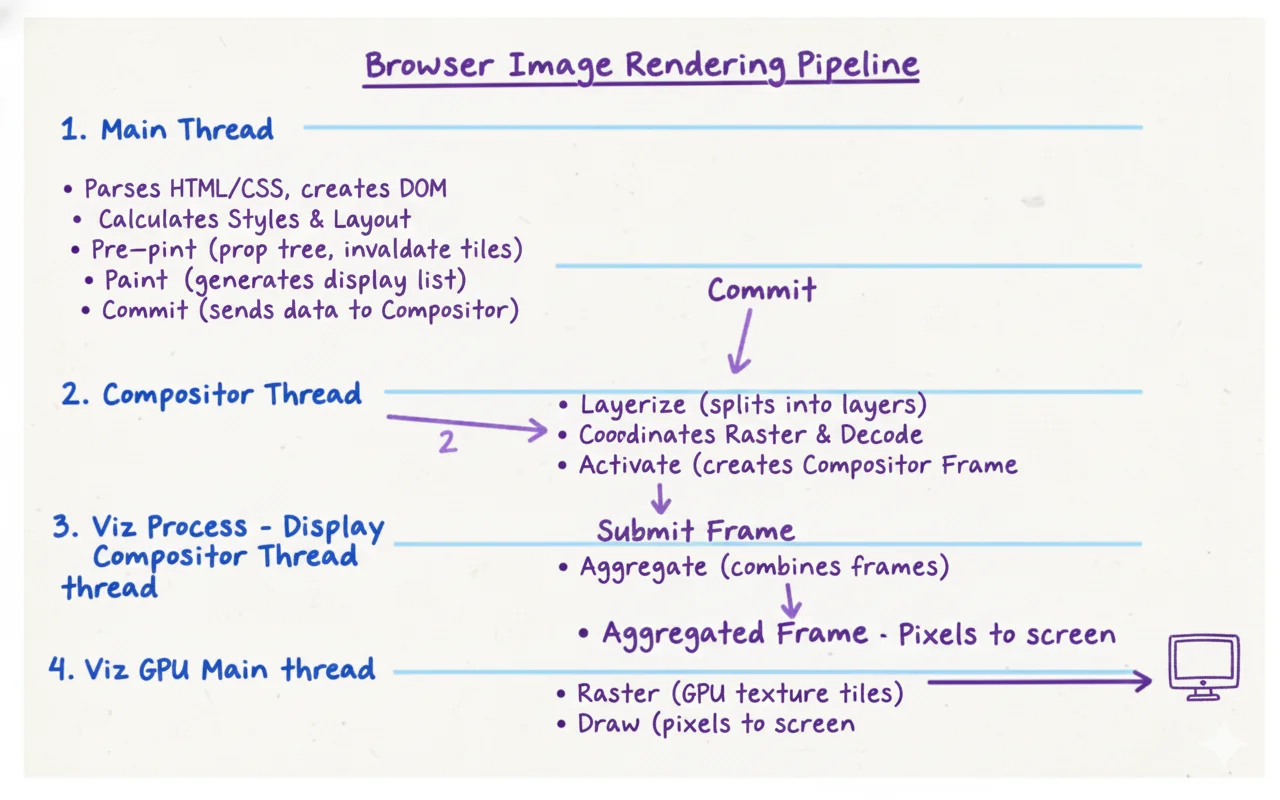
Based on Chrome's RenderingNG architecture, images are decoded in the compositor thread after layout is determined in the main thread, and finally drawn on screen by the GPU. Let's follow each step.
1. Render Process - Main Thread
This stage involves designing the placement and layout of images.
- Parser: Parses HTML, identifies image resources, and requests them (proactive requests via preload scanner).
- Style, Layout: Creates computed styles for elements, including images, and determines their size and position on screen.
- Pre-paint: Calculates property trees, and if an image has changed, invalidates existing GPU texture tiles and display lists to prepare for redrawing.
- Paint: Generates a display list that records how the image should be rasterized.
- Commit: Copies all this information (property trees, display lists) to the Compositor Thread.
2. Render Process - Compositor Thread
This stage coordinates image decoding and rasterization tasks and manages layers.
- Layerize: Divides into a list of composited layers for independent rasterization and animation.
- Raster, Decode (Coordination):
- Decoding: The Compositor Thread Helper performs the task of converting encoded images into bitmaps.
- Raster: The Compositor Thread coordinates rasterization tasks (actual GPU-based rasterization is executed on the GPU Main Thread of the Viz process).
- Activate: Collects completed tiles to create a Compositor Frame.
3. Viz Process - Display Compositor Thread
- Aggregate: Integrates frames sent from the browser UI and each tab (render process) into a single global compositor frame.
4. Viz Process - GPU Main Thread
This stage uses actual GPU resources to create pixels.
- Raster: Converts the display list received from the Compositor Thread into actual GPU texture tiles.
- Draw: Executes on the GPU based on the aggregated frame to output actual pixels to the screen.
Rendering Process Diagram Generated by AI
Next Post Preview
In this post, we explored the characteristics of image formats, the relationship between resolution and decoding, and the browser's rendering pipeline. In the next post, we will build upon this understanding to discuss actual image optimization strategies.
- Image Request Optimization (preload, priority hints, caching strategies)
- Image Asset Management (resolution-specific delivery, CDN utilization)
- Product Image Optimization (processing at upload, optimization at rendering)
References
- web.dev - Top CWV
- 올리브영 테크 블로그 - 이미지 최적화
- 올리브영 테크 블로그 - Next.js 이미지 최적화
- 올리브영 테크 블로그 - Next CDN Standalone
- web.dev - Browser-level Image Lazy Loading
- web.dev - Image Performance
- Preload Scanner란 무엇인가
- Chrome RenderingNG Architecture
- 이미지 디코딩 - johnny-mh
- Cloudinary - Retina and HiDPI Devices
- HTTP Archive - Page Weight